Before you start
-
The app
Uncloud for iPhone, free on the App Store, signed in to your account.
-
Somewhere to put it
Uncloud Cloud Storage (10 GB free for 30 days), or your own storage node with no limit but its drives.
-
A connection
Wi-Fi is best for big videos. If it drops, Uncloud keeps them and finishes later.
-
Step 1 of 7
Find what's filling your iPhone
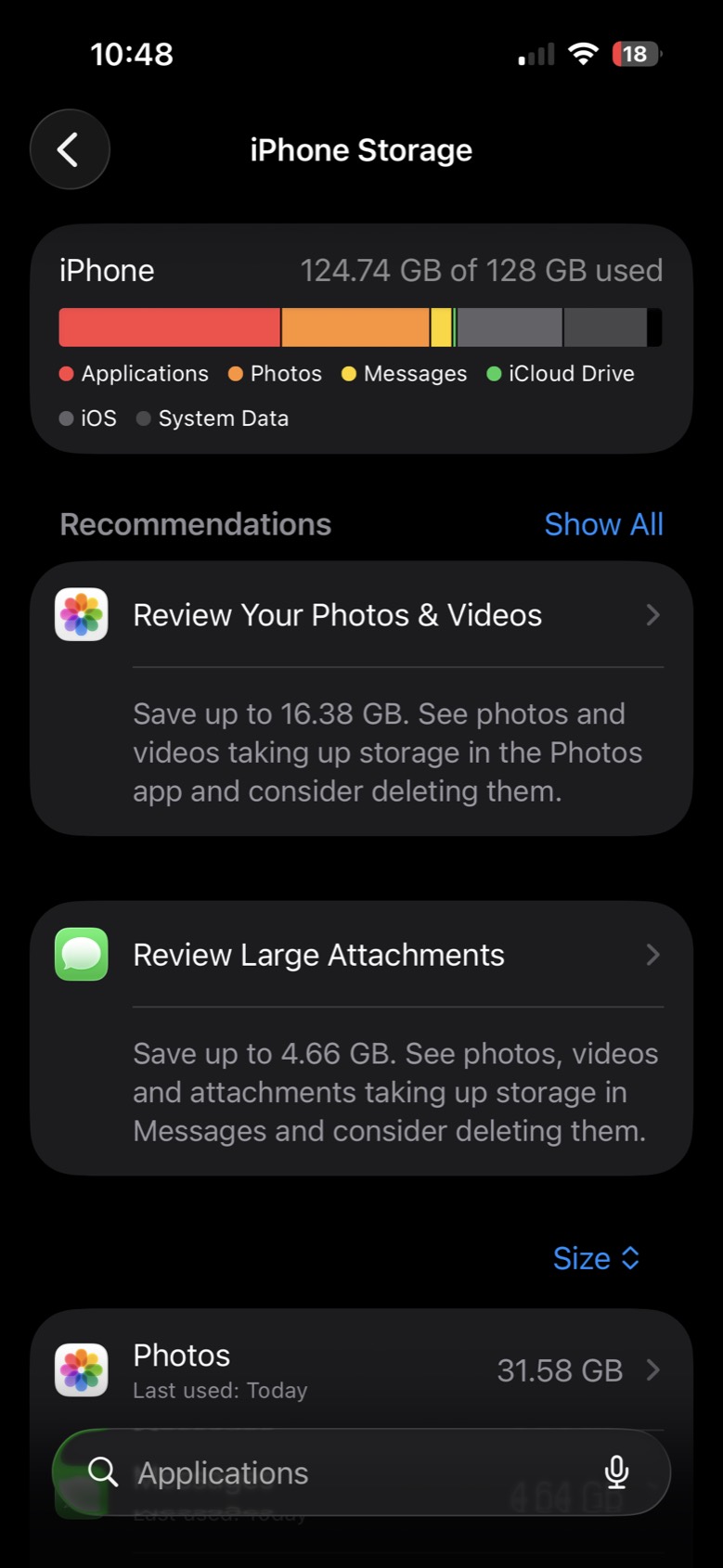
Open Settings › General › iPhone Storage. The bar at the top shows where the space went. Under Recommendations, tap Review Your Photos & Videos.
-
Step 2 of 7
Go straight to the videos
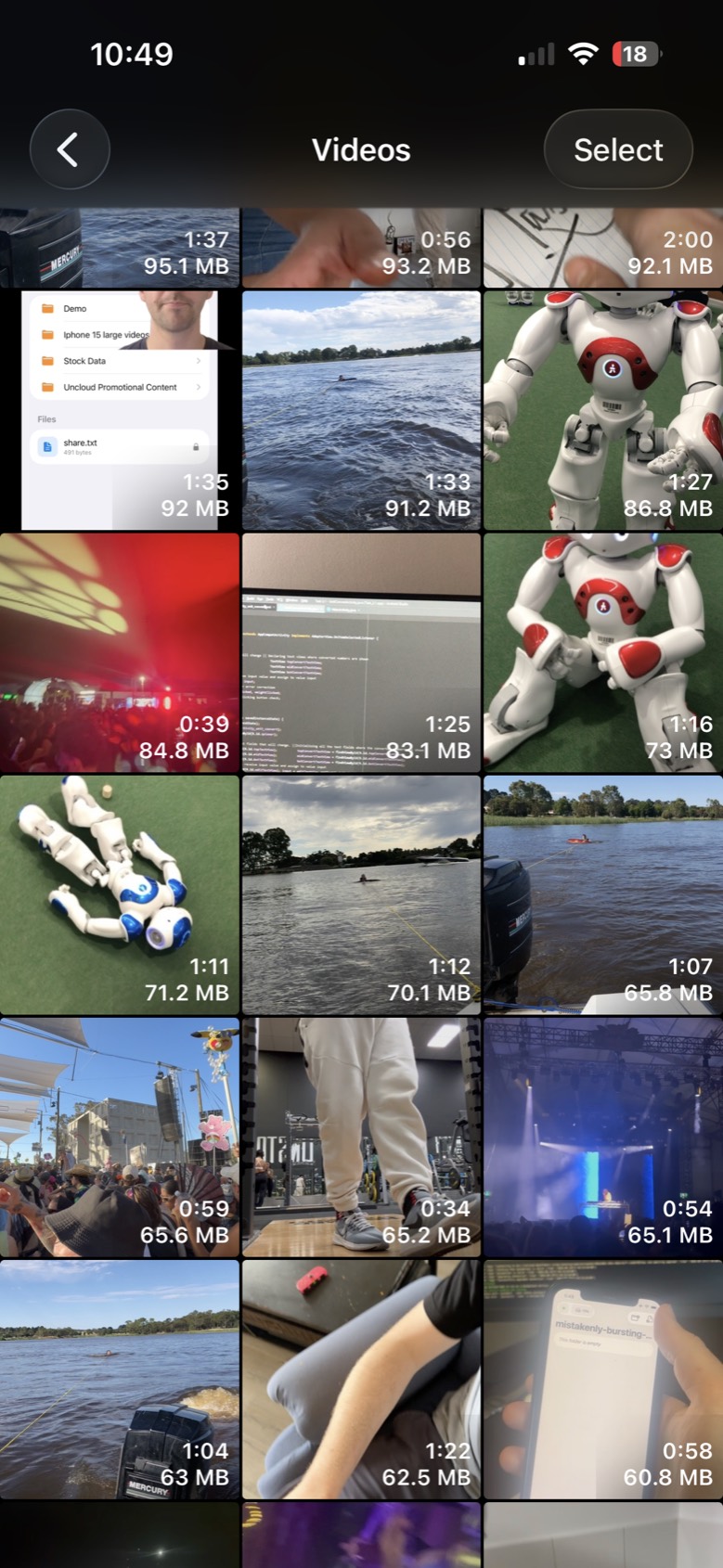
Screenshots and duplicates barely register. Here, videos were taking 15.82 GB on their own. Tap Videos.

-
Step 3 of 7
Start with the biggest
Your videos are listed largest first, each with its size. Open one you want to keep but don't need on your phone. A few of these frees gigabytes.
-
Step 4 of 7
Share it to Uncloud
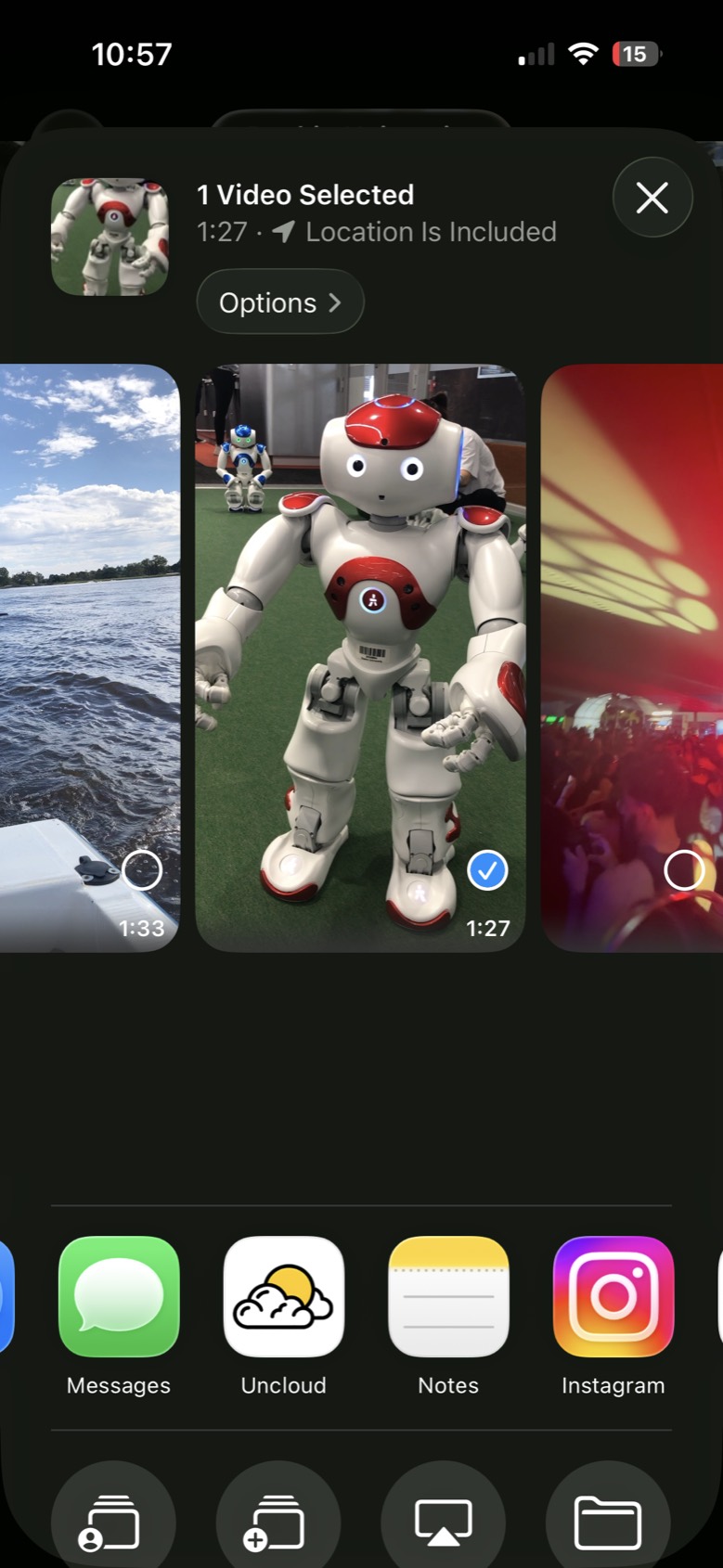
Tap Share, then Uncloud in the row of apps. Swipe sideways along the top to pick more than one at a time.
-
Step 5 of 7
Let Uncloud get it ready
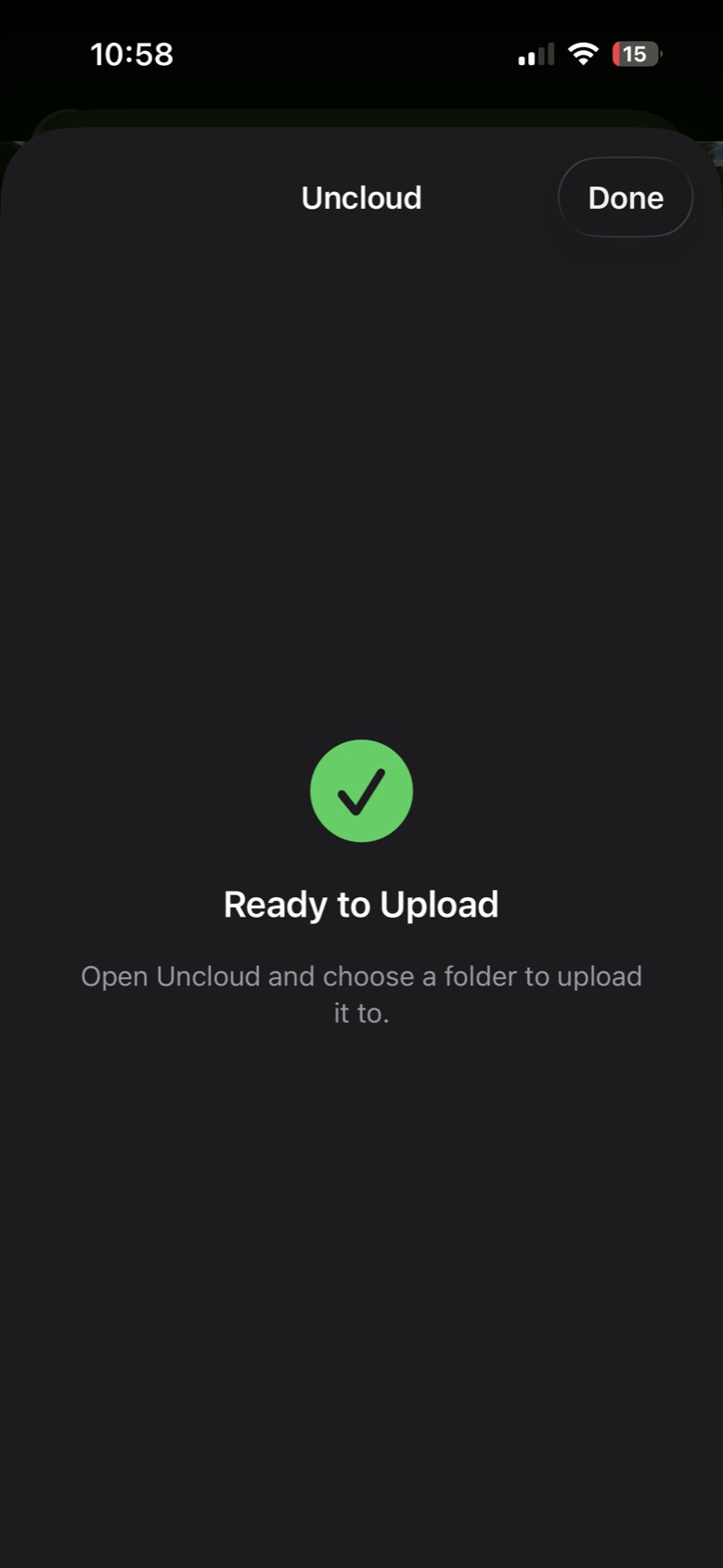
Uncloud copies the video out of Photos. When it says Ready to Upload, tap Done and open Uncloud.
-
Step 6 of 7
Pick a folder and upload
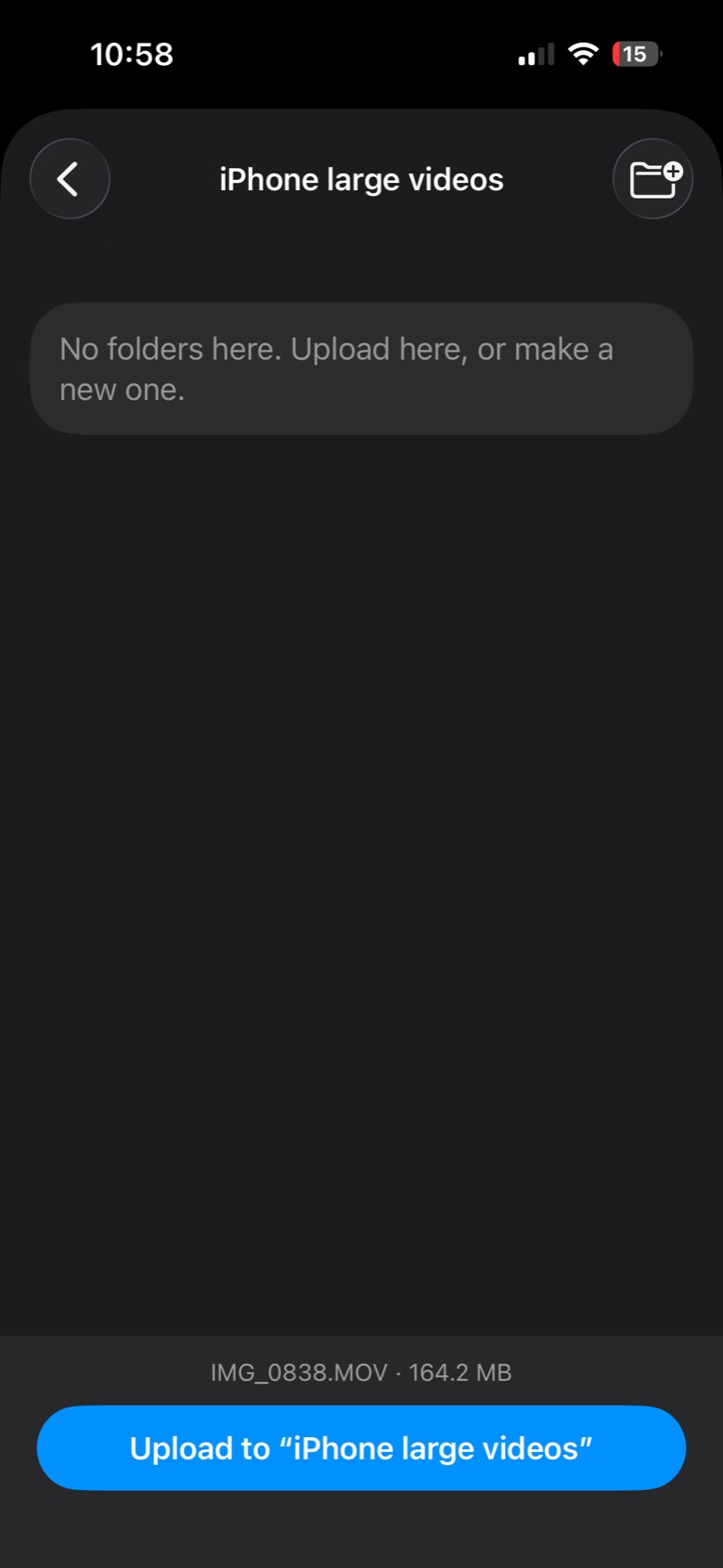
Choose where it goes, or make a new folder, and tap Upload. It's encrypted on your phone before it leaves, so only you can open it.
-
Step 7 of 7
Check it's safe, then delete it from your phone
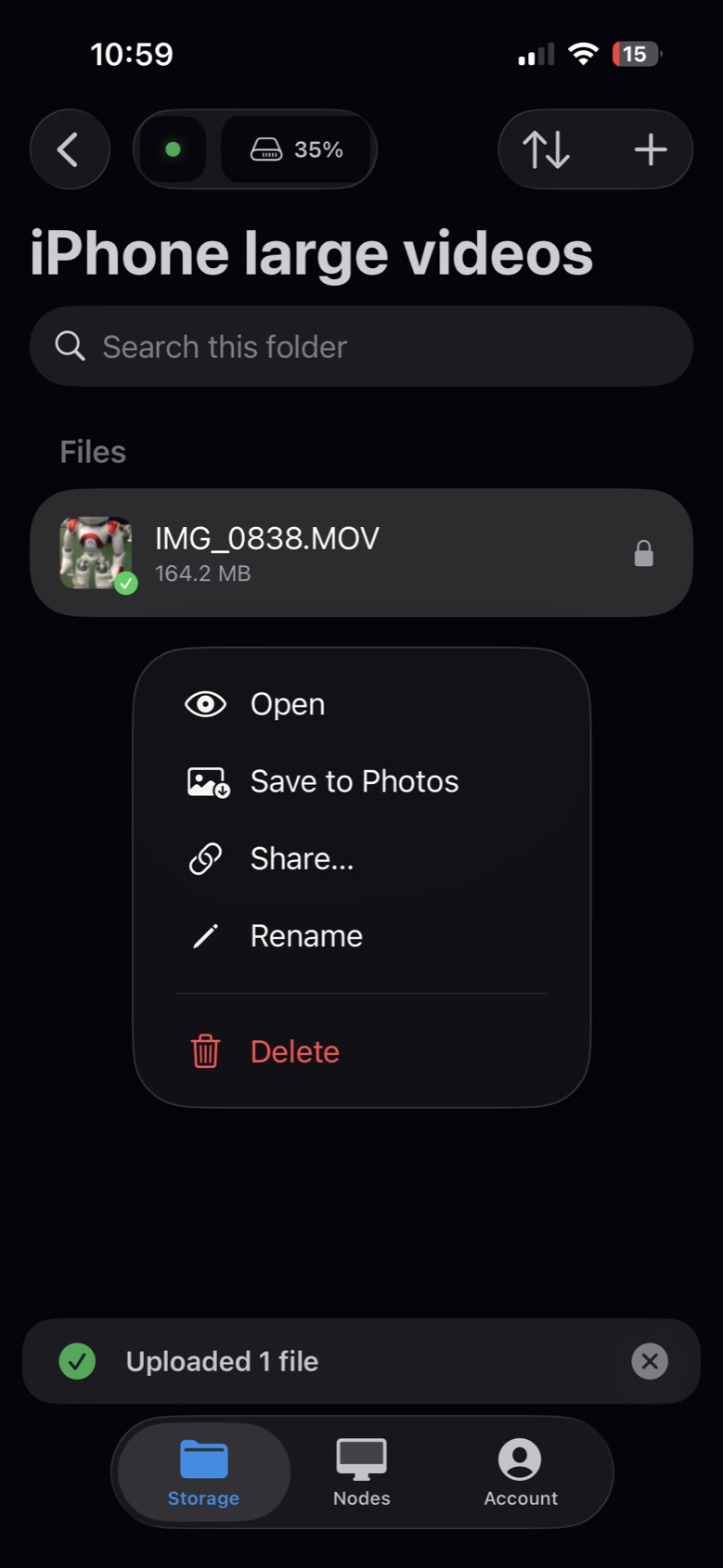
When Uncloud says Uploaded, it's there, with a lock to show it's encrypted. Now delete it from Photos, and empty Recently Deleted to get the space back straight away.
Need it on your phone again? Press and hold it in Uncloud, then Save to Photos.